Home
Help Center
Email Marketing Service
Email Campaigns
Using the campaign calendar: viewing, filtering, and creating campaigns
Understanding domain statuses: Verified, Processing, Unverified
Managing sending domains
Why DNS records matter for email deliverability
Adding & verifying DNS records (SPF, DKIM, DMARC)
Checking & resolving domain blacklist issues
Managing sender email addresses
Sender address requirements and best practices
What to do if a sender address is in use by active campaigns
Understanding shared vs. dedicated IP addresses
Connecting or disconnecting a domain to/from an IP address
Buying & managing dedicated IP addresses
User roles & statuses
User status explained: active and deleted users
How to add a new user: user invitations and registration
Managing user permissions and access rights
Default permissions for additional users
Deleting users
Transferring admin rights to another user
What happens after admin rights are transferred?
What happens when permissions are disabled for a user?
How to create your first email campaign
Campaign card overview: General, Contacts, Email template, Scheduler
Naming and renaming campaigns
Understanding campaign statuses: Waiting, In progress, Paused, Finished
Saving progress and navigating between campaign blocks
How to set up the sender email address and name
Managing reply-to addresses in campaigns
Selecting and managing IP addresses for sending
How to select recipients: Contacts, Groups, Segments
Excluding contacts and groups from a campaign
Understanding contact limits and subscription packages
What to do if you exceed your email sending limit
Validating contacts before sending: Email Checker explained
Choosing and editing email templates for campaigns
Uploading custom HTML
Writing effective subjects and preheaders
Adding and managing UTM parameters
Scheduling campaigns: send now or later
Setting up delivery dates, times, and days of the week
How to calculate and adjust sending volume over time
Managing dedicated IP expiration and renewal
How to preview and test your campaign
Managing and editing your test email group
Using the campaign calendar: viewing, filtering, and creating campaigns
Understanding campaign statuses: Active, Scheduled, Completed
Viewing campaign details and quick actions from the calendar
Navigating the campaign list: columns and filters
Searching and filtering campaigns by name, date, and status
Campaign card: overview, timeline, and audience
How to pause, continue, or delete a campaign
Understanding campaign statuses: Planned, Active, Paused, Finished
Campaign performance & analytics
Using heatmaps to analyze email engagement
Automations
Creating a New Automation
Understanding Automation Templates
Managing Your Automations List
Automation Builder: Overview and Navigation
Setting Up Automation Details (Name, Description, Tags)
Working with Triggers
Working with Actions
Managing Elements in the Workflow Canvas
Running and Pausing Automations
Automation Settings Panel
Managing Emails and Templates Inside Automations
Contact Management Inside Automations
Using the campaign calendar: viewing, filtering, and creating campaigns
The Campaign Calendar in Sendigram helps you plan, manage, and track all your email campaigns in one place. It provides a visual overview of scheduled, in-progress, and completed campaigns, making it easier to coordinate marketing activities.
1. Viewing the Campaign Calendar
- Go to Campaigns → Calendar from the main navigation.
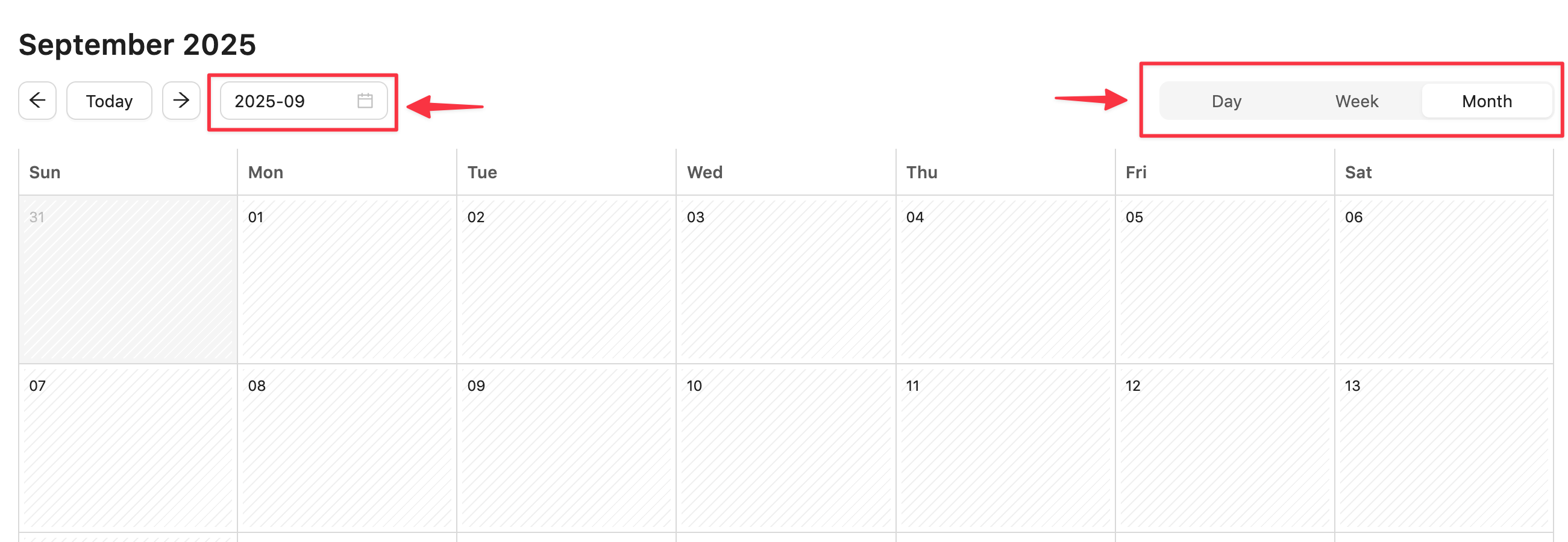
- Choose your preferred view:
- Monthly view – see all campaigns for the month.
- Weekly view – focus on upcoming campaigns.
- Daily view – review campaigns scheduled for a specific day.
- Specific date range view – click on the date range view selector in the data range field.
- Hover over a campaign to see quick details (name, send time, audience).
- Click a campaign to open its Campaign Card for full editing or reporting.
2. Creating Campaigns from the Calendar
- In the calendar, click on the date you want to schedule a campaign.
- Select Create Campaign.
- Fill in the General details (name, subject line, sender).
- Add recipients, design your template, and configure the Scheduler.
- Save or schedule the campaign directly from the calendar.
3. Benefits of the Campaign Calendar
- Organization – visualize your sending schedule to avoid overlaps.
- Team coordination – see what other users are planning or running.
- Efficiency – create and schedule campaigns directly without switching views.
- Strategic planning – spot gaps or heavy sending days at a glance.
Still have questions?